Before you start: bring your course details and a realistic week
Pace is designed for students aged 13 and over. The free website tools are already available. This walkthrough describes the application workflow checked against its source on 15 October 2026. Public app access is being prepared. The verified store link will appear here when it is ready.
Have your school or college timetable, course choices and teacher feedback to hand. Pace organises effort; it does not teach the specification, mark your answers or predict a grade. You will still need appropriate notes, questions, mark schemes and help with material you do not understand.
For the example, imagine a Year 11 student using school materials and reserving a repeatable weekly budget after lessons, homework and other commitments. Their name, account, dates, rewards and results in the screenshots are demo data. They are not a testimonial or an official exam timetable.
1. Choose the right qualification, subjects and course variants
Choose GCSE or A-level and add the courses you actually take. Check the awarding organisation and specification rather than matching the subject name alone. Where offered, confirm the tier, route and options that apply. Your teachers and exams officer are the reference if you are unsure.
Pace’s reviewed preset catalogue covers selected England courses from AQA, Pearson Edexcel, OCR and Eduqas. It is not a complete UK qualification catalogue. Do not choose a similar-looking England preset to stand in for a Wales-regulated WJEC, CCEA or Scottish qualification.
In Subjects, expand a course to review its papers and topics. Topic tracking is planning context, not an independent assessment of mastery. If you choose a confidence level, treat it as your own judgement and check it against what you can explain or answer without help.
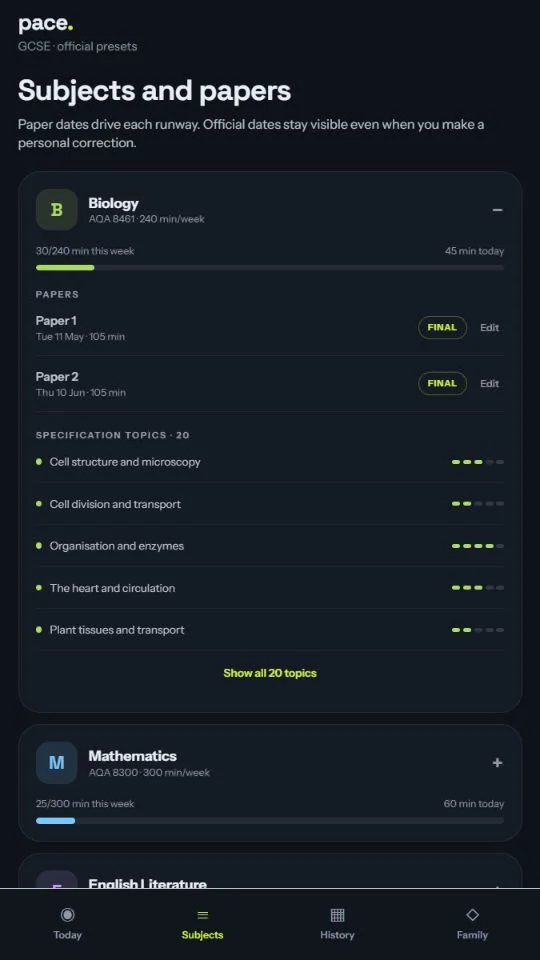
2. Check the papers that drive the countdown
Review each paper against your centre’s personal timetable. Check the component, date and morning or afternoon session, plus arrival instructions supplied by school. Practical, oral and non-examination assessments may need separate arrangements. A common national exam window cannot determine your individual first paper.
Official preset information remains distinguishable from a personal date correction. An edited date should reflect a confirmed arrangement, not a guessed change to a board timetable. If you see a clash or inconsistent information, ask the exams officer to resolve it before relying on the countdown.
The demo screenshots deliberately preserve the example account as supplied. Do not copy their 2027 paper dates into your plan. Use the linked official timetable sources and your centre’s instructions instead.
3. Set a weekly budget you can repeat
Start with available time, then review the allocation across subjects. Protect sleep, meals, travel, lessons, assigned work and existing commitments before choosing extra revision. A suggested starting budget is an editable planning choice, not an educational prescription for the number of hours you need.
Suppose you have six focused hours available. That is 360 minutes of work, with breaks and setup time outside the total. The Year 11 example linked below shows exactly where those minutes go and includes a review block. If your week only supports three hours, make that constraint visible rather than borrowing imaginary time.
Use teacher feedback to decide what those minutes are for. An app can keep effort and dates visible, but it cannot infer from a filled progress bar whether the chosen questions were useful. Review both the size of the budget and the quality of the work you selected.
4. Open Today and choose one bounded task
Today brings the next paper’s remaining calendar runway, recorded effort and the subject rotation together. The displayed pace is an effort target. It is not a claim that the student is on course for a particular grade. XP, streaks and an optional family league provide activity feedback, not assessment evidence.
Turn ‘Biology’ into a task before pressing Start revising. For example: retrieve the steps of a taught process, answer two suitable questions, check the mark scheme and explain one correction. Put the resources within reach so the time is spent on work rather than searching.
When the plan changes, return to the next useful session and review the remaining budget. Pace’s adjustment of effort does not create extra hours or recover the calendar day that has passed. The worked plans show explicit decisions about reducing or moving tasks.
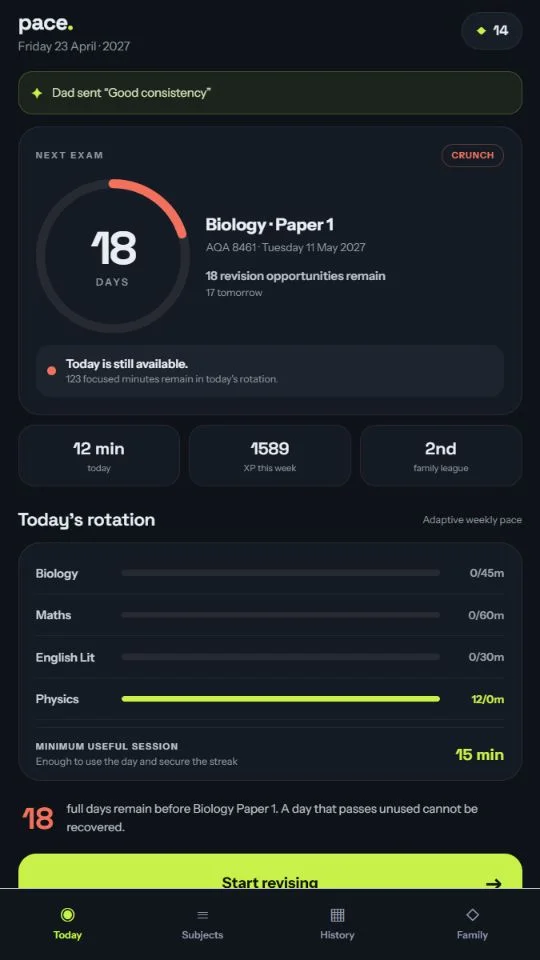
5. Start the timer and understand what ‘verified’ means
Choose the subject, a relevant topic and a session duration in the session chooser. Start timer begins the foreground session. You can pause and resume. Moving Pace into the background pauses verification, so switching to a learning app on the same phone will affect recorded time. Use paper resources or another device if that suits your study task.
The timer records eligible elapsed time; it does not observe attention, check answers or prove revision happened. When the timer reaches its end, the session saves. If you stop early after at least one recorded minute, the interface offers to save whole recorded minutes. Ending without saving is a separate choice. Check the save confirmation; if a save fails, follow the retry state rather than assuming it reached your account.
Keep the learning check separate from the timer: what could you answer unaided, what failed and what will you attempt again? A shorter completed attempt with a useful correction can be more informative than a long session with no checked output. We are not asserting an ideal session length for every student.
6. Review the effort alongside the work itself
History gives you a record of sessions and daily effort. Use it to notice whether the plan fits your actual week. If the same evening repeatedly fails, change the schedule or budget. A gap in recorded time should start a practical conversation, not become a judgement about the student’s ability.
At the end of the week, put your marked work next to the time record. Ask which error was corrected, which topic still needs teaching and which fresh question should come next. Pace’s recorded minutes and your learning evidence answer different questions, so keep both visible when reviewing progress.
7. Add optional family support with clear boundaries
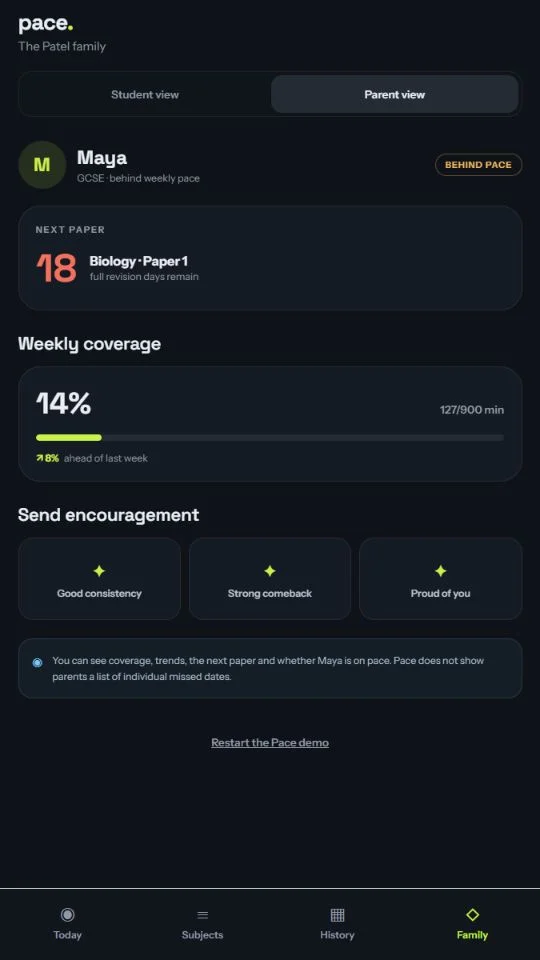
Parents and students use separate accounts. Family invitations should only be accepted from someone you know and trust; an invitation does not verify a relationship or parental responsibility. Once the student owns the accepted plan, the parent cannot edit it. The student controls their sharing choices.
With sharing enabled, the parent overview can show weekly coverage, trends, the next paper and whether the student is on pace. Parents do not see a list of individual missed dates. Encouragement and family league participation have their own controls; any league handicap needs agreement from both parent and student.
Agree on how to use that information before connecting. A useful weekly question is ‘Which task needs help or a different time?’ The overview cannot show whether a student understands the lesson, and a coverage percentage should not be used as a grade prediction.
A useful first-week checklist
Finish the week with a smaller, clearer decision for next time. Keep the first review short enough that it does not become another revision project. If the material itself is the obstacle, ask a teacher for a specific explanation or a suitable starting question.
- Confirm courses and paper dates with school or college.
- Choose a feasible weekly budget and locate the materials.
- Begin one task with an observable output, such as a checked answer.
- Confirm saved time without treating it as proof of understanding.
- Revisit one correction in a later session.
- Review the next week and agree any family support.
Practical answers
Questions before you start
Does Pace check that I am concentrating?
No. Verified time refers to the foreground timer’s recorded time. It does not establish attention, completed questions, understanding or grades.
Is the free website timetable the same as the app?
No. The website builder divides a supplied budget across available days and rotates subjects evenly. It does not create an account, save ongoing history or reproduce the app’s pacing workflow.
Can a parent change my accepted plan?
The student owns the accepted plan; a connected parent is read-only. Sharing, encouragement and league settings determine the family experience. See the family-sharing policy for the detailed boundaries.